Backups and history
Schedule and Run now
Set the schedule under Settings → Schedule & Notifications: daily, weekly, every few hours, or a 5-field cron schedule. Changes apply without a restart. If a saved schedule stops being valid (3.0’s cron update refuses a few hand-typed forms, such as 1#7 or non-ASCII digits), no scheduled backups run, and the Overview and Run & Status say so until you fix it in Settings.
A hand-typed step that starts at a field’s maximum, such as 59/15 or 6/1, now means just that value, not “every”: use */15 for every 15 minutes. The schedule picker never writes these.
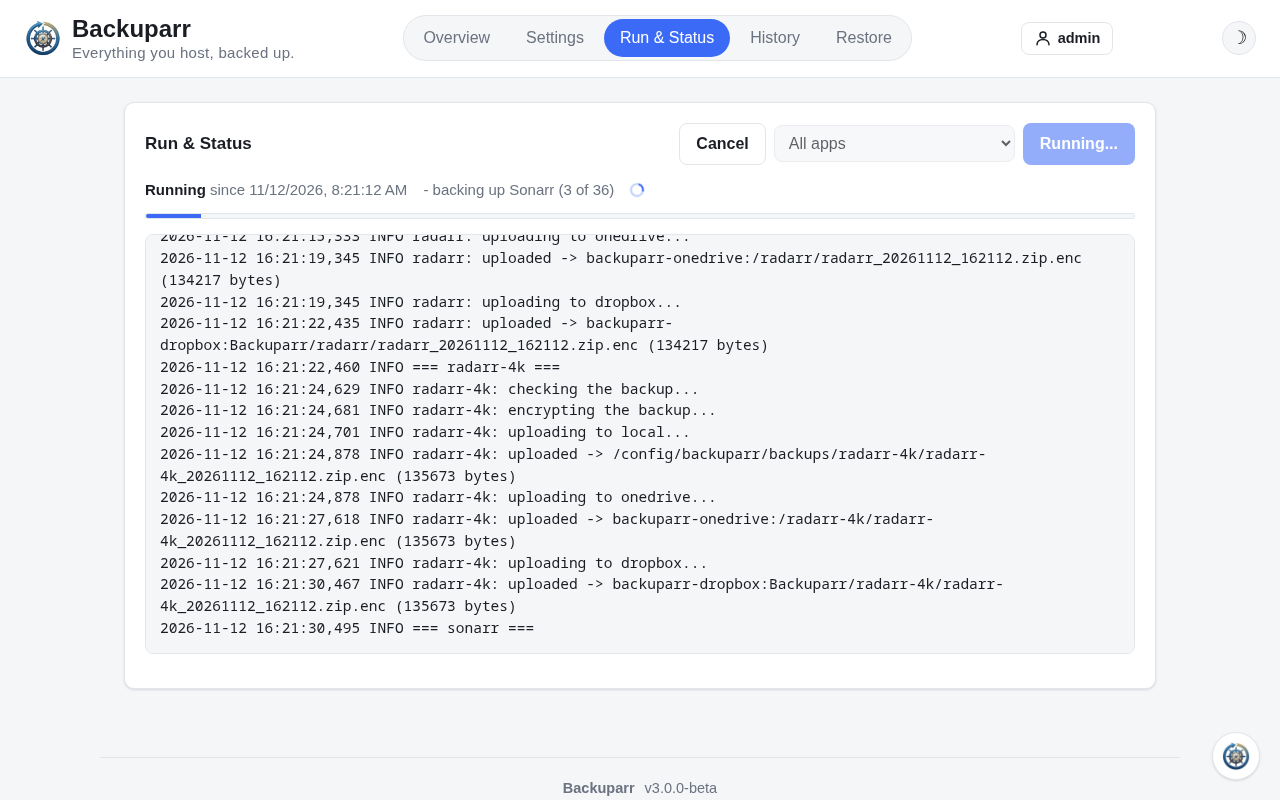
Run & Status → Run backup now backs up every app, or the one you pick (Backuparr itself included), and shows the run live. A backup and a restore never run at the same time.
The Overview
Under At a Glance, one line sums up the latest backup of every enabled app and instance, and of Backuparr itself: “All 17 backups succeeded”, or “15 of 17 backups succeeded” with a line for each one that failed, its error included. Click a line to jump to that app’s card, which has its log. A backup that failed on one destination counts as failed. An app with no backup yet isn’t a failure: the line says how many aren’t backed up yet. While a backup runs it says “Backing up…”, and it updates when the run ends.
Retention
Default retention (days) deletes each app’s backups older than that, separately on each destination. Each app’s newest backup is always kept, so a run of failed backups never removes the last good one. Backuparr only deletes its own archives (<app>/<app>_<date>_<time>.zip, or .zip.enc when encrypted), so a destination folder can hold other files. On Google Drive and OneDrive, deleting is permanent: backups don’t go to the trash or recycle bin, which would still count against your storage.
To keep backups longer or shorter on one destination, set Retention (days) on its card under Settings > Destinations - for example 28 days on Local storage and 7 on Google Drive. Left blank, a destination uses the default. Once a destination has its own, the Overview shows each destination’s retention.
The check before upload
Each backup is checked before it’s uploaded:
- The archive opens and reads back intact.
- Its SQLite databases pass a quick check.
- The files the app’s restore needs are in it.
A backup that fails isn’t uploaded, and the app shows as failed with the reason. An encrypted backup is checked again after encryption: it must decrypt back to the archive that passed.
Run logs
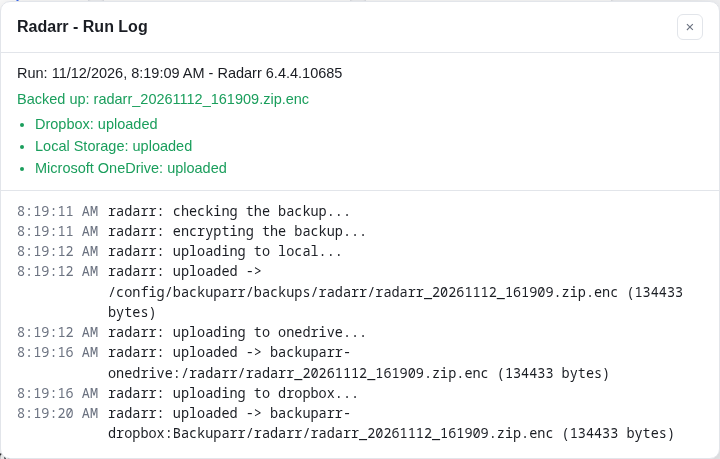
Each app’s log from each run is kept for as long as retention keeps that run’s backups (the longest retention, when destinations differ), and its latest run is always kept.
- View log on an app’s Overview tile shows its latest run.
- On the History tab, each backup has its own log. A run that left no backup on that destination is listed greyed out as Backup failed; its log says why.
History
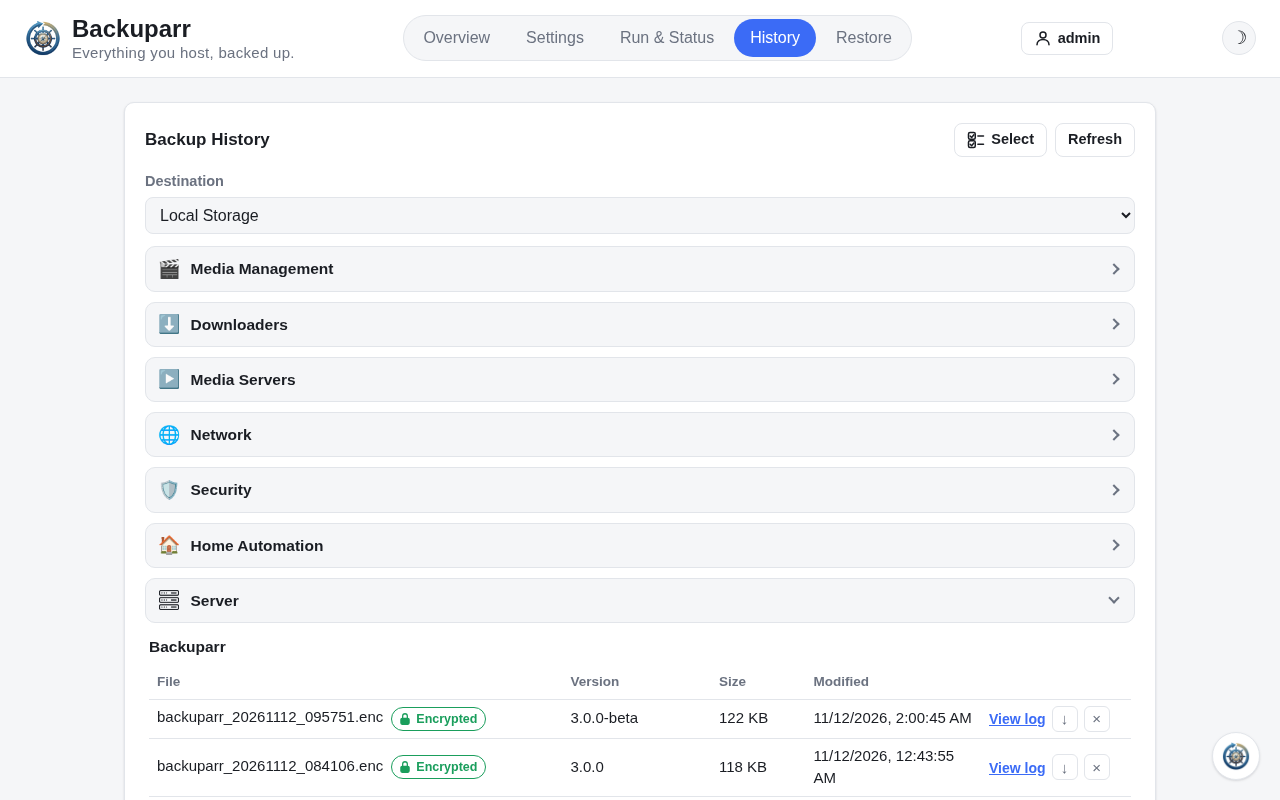
Pick a destination to list each app’s backups there, with their size, date, the app version each one came from, and whether it’s encrypted. You can download or delete any of them, or open its log. An encrypted backup downloads decrypted - see Encrypted backups.
The apps are grouped under the same categories as on Settings, each with a header that folds it away; Backuparr’s own backups are under Server. Which categories are folded is remembered in your browser.
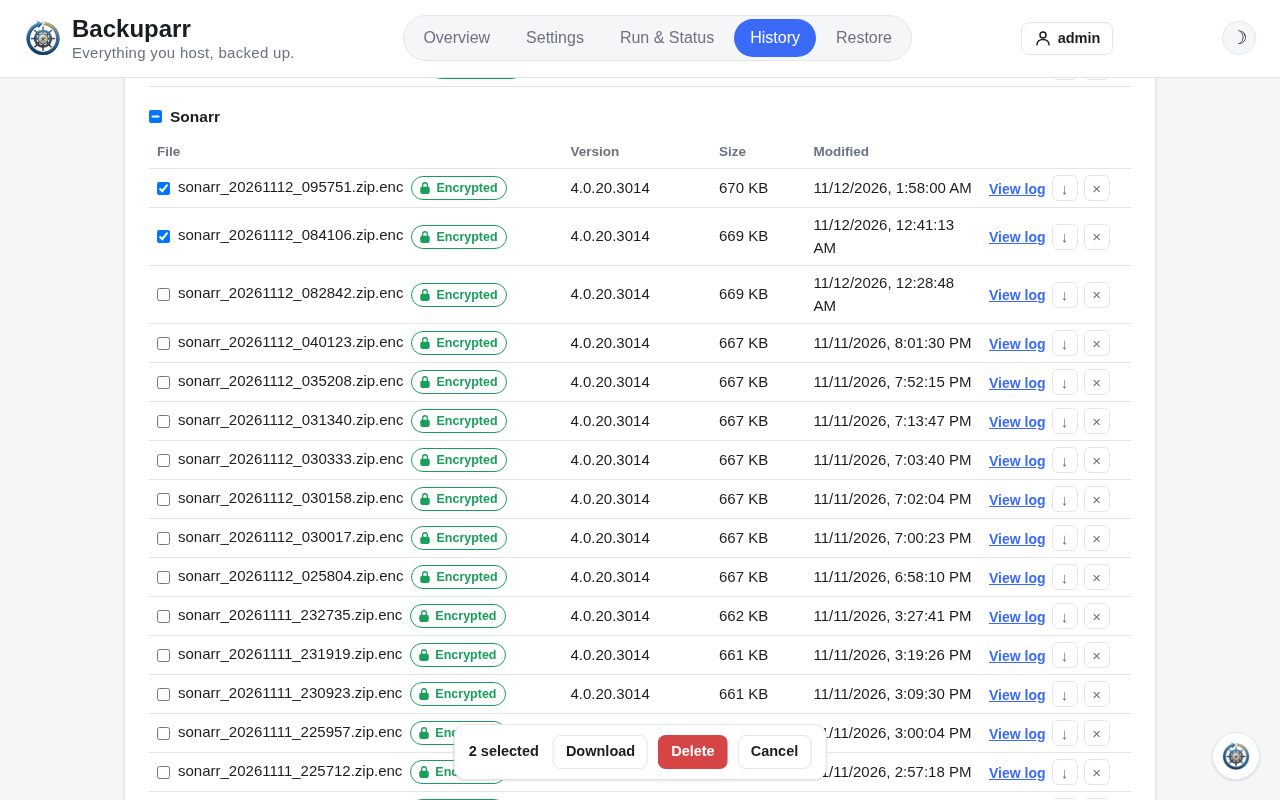
Several at once: click Select, tick the backups (or a whole app with the box beside its name), then use the bar at the bottom of the window: Download gets one backup as usual, or several in one zip, each as a single download would give it: the bar shows “Preparing 3 of 5…” while Backuparr builds the zip, then the download starts. Delete removes them after one confirmation, counting up (“Deleting 3 of 10…”); any that couldn’t be deleted stay ticked, and the bar says why. A failed run’s row can be ticked and deleted too, which removes it from this destination’s History. Cancel leaves the selection. While the bar is busy, the selection can’t change.
The backup record
manifest.json, beside config.json, records each backup Backuparr made:
- the destinations holding it
- the app version it came from, and Backuparr’s version
- its size and SHA-256 checksum (of the file as stored, so of the encrypted file when it’s encrypted), and whether it’s encrypted
Restores use it to check the app version and the download. Backuparr keeps it up to date; don’t edit it.
Backups made before 2.5.0 are added in the background after updating, each read once:
- Local Storage is read first. A cloud copy of a backup already read there isn’t downloaded.
- Any other backup on Google Drive, OneDrive or Dropbox is downloaded once.
- This pauses while a backup or restore runs. Later startups only read backups that aren’t recorded yet.
- On a slow or metered connection, set
RCLONE_BWLIMIT. - Bazarr, SABnzbd and Tdarr backups from before 2.5.0 don’t hold a version, so theirs stays unknown.